Trouble shooting and advanced usages
Want to change the host only network IP
192.168.99.123 is hardcoded in Vagrantfile so you can edit
config.vm.network "private_network", ip: "192.168.99.123"Want to destroy the VM but use the docker lib storage in the new VM
vagrant destory will remove all the VM storage attached.
To avoid deletion of the storage attached,
- Shutdown the VM first with
vagrant halt - dettach the disk using Virtualbox
- Open Oracle VM VirtualBox
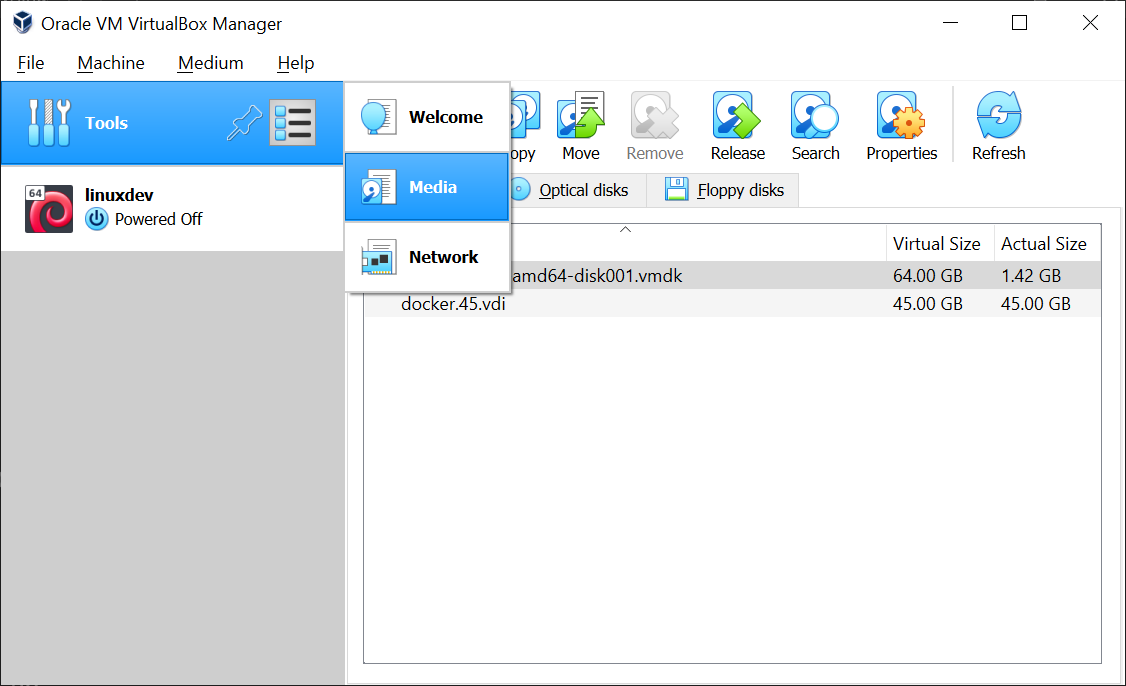 2. In Tools > Media, identify docker.xx.vdi in the right pane, which is used in the VM
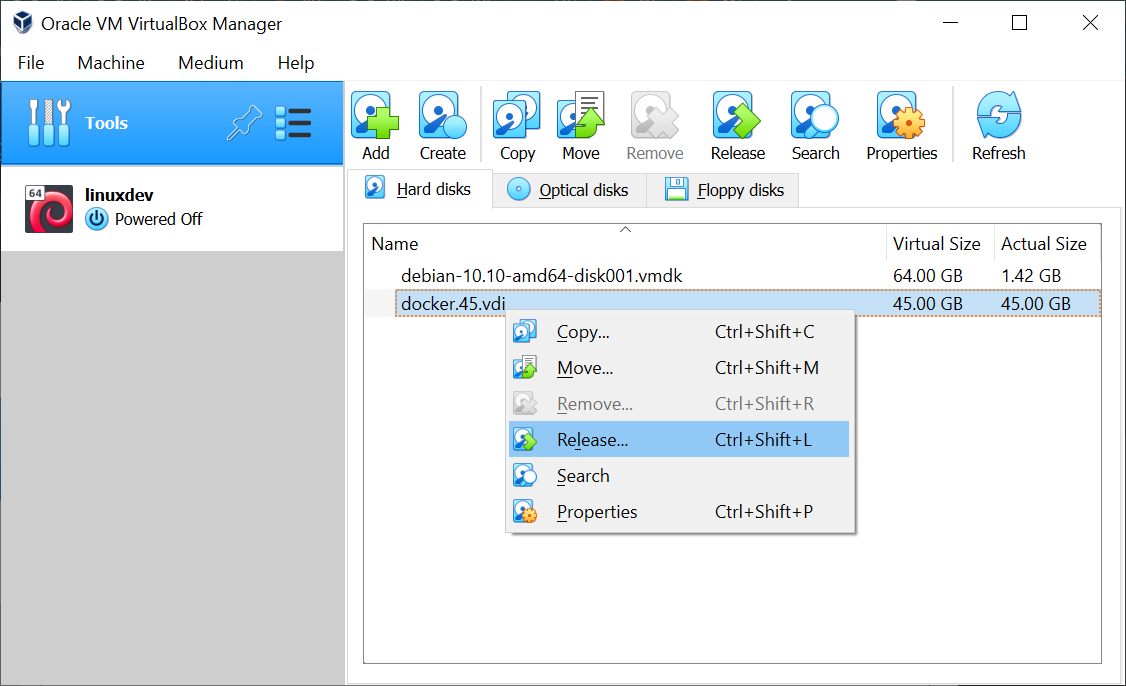
3. right click and click Release
2. In Tools > Media, identify docker.xx.vdi in the right pane, which is used in the VM
3. right click and click Release
 3. destroy the VM running
 ./destroy.sh in linuxdev dir
4. bootstrap.sh
5. run sudo /root/docker.disk.sh /dev/sdb1 to attach the storage
Want to create another VM
Clone this repo in the other directory and use different machine name during bootstrap.sh
You will need to manage DOCKER_xxx variables manually
Creating machine failed
Find %USERPROFILE%\VirualBox VMs\<machine_name>\Logs and try to delete.
If it cannot be deleted, see the Task Manager and
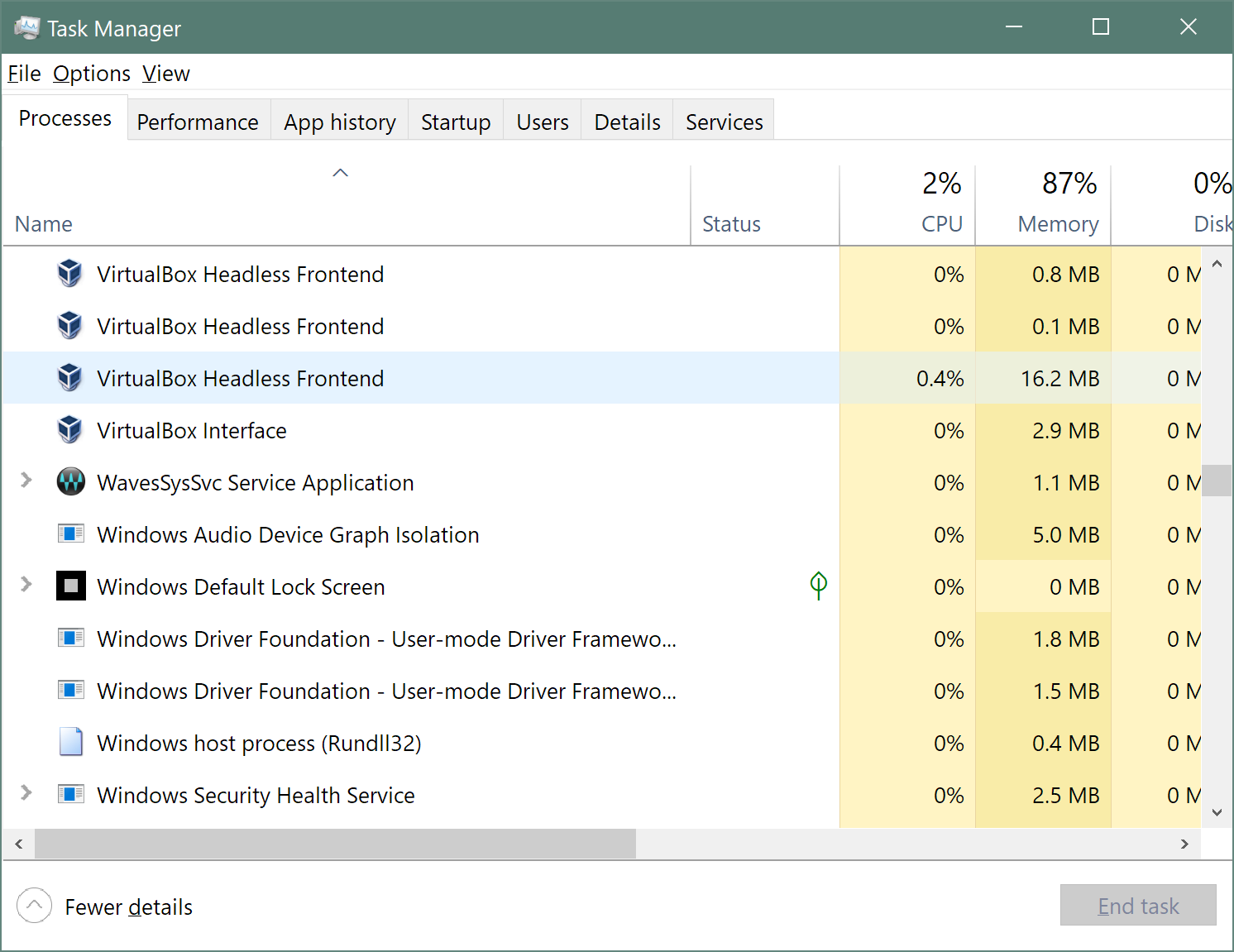
End tasks for VirtualBox Headless Frontend and try to remove the Logs directory and try again.
OSX Big Sur
VirtualBox fails to add host-only network when it’s not allowed in the Security & Privacy
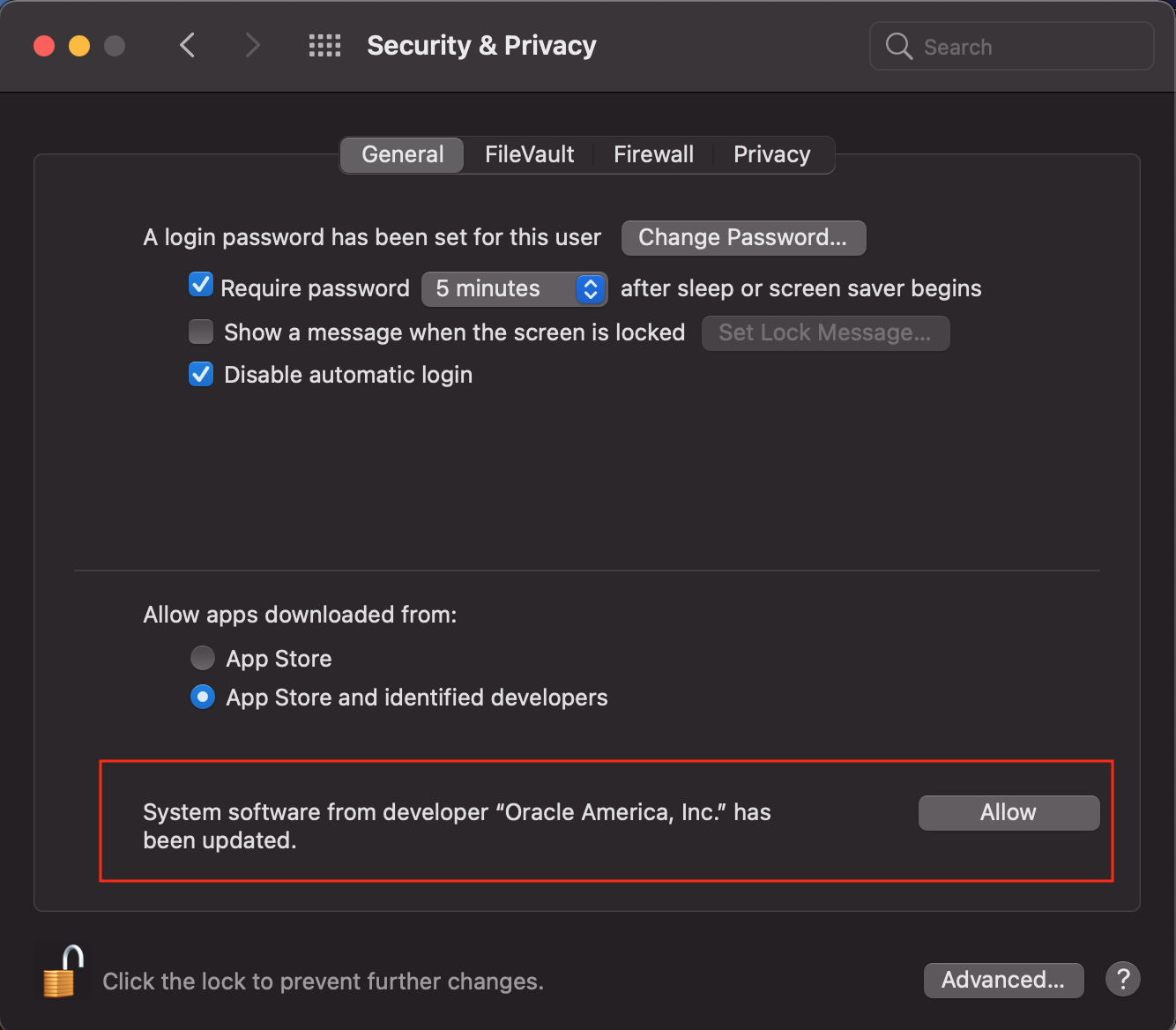
Without this, creating VM using Vagrant won’t work.
Version 11.4?
I had some issue with granting the Virtualbox kernel extension, which was keep asking the permission after rebooting. Allowing actually was not working.
The issue was fixed I upgrade OSX to 16.
If you have 11.4, please consider upgrade to 11.6 or the latest.
Use ext4 partition on Windows 10
This would be just an instace how to use ext4 partitions
USB external disks can be mounted directly to the Linux on VM and if you have VirtualBox Extension pack, USB3 is also supported.
The following instruction is mounting external disk to VirtualBox without the extension pack.
Mount entire system disk to Virutalbox
create vmdk file for the physical drive
Windows Disk Management will show the external disks with the number like 0, 1, 2
if you have the only system drive, it will be 0. so the find the number of the disk which you want to mount.
And run following command in Powershell (admin)
with modifying the number 2 to the number of your disk
VBoxManage internalcommands createrawvmdk -filename "$env:USERPROFILE\VirtualBox VMs\external-disk-2.vmdk" -rawdisk \\.\PhysicalDrive2add the vmdk to your virtualbox.
  config.vm.provider "virtualbox" do |vb|
...
    disk_filename = (ENV['USERPROFILE'] || "") + "/VirtualBox VMs/ext4t2.vmdk"
    vb.customize ['storageattach', :id, '--storagectl', 'SATA Controller', '--port', 3, '--type', 'hdd', '--medium', disk_filename]
  end
You will need Administrator privileges to starth the VM.
Shutdown all the running VirtualBox VM and kill close Virtualbox and kill all running VBox related tasks. and runt vagrant reload command as Admnistrator.
When the VM is running, you can check the partitions by
ls -la /dev/disk/by-uuid/or by root (sudo su -)
fdisk -lmount the partition by mount /dev/disk/by-uuid/4fcc4aba-dd74-4212-b6f0-154c49c69242 /mnt/external-disk-2
or add that to /etc/fstab
And you can use startup_as_admin.bat in the scripts directory to start the VM as administrator